Generate Poster Blog
How to make a poster with your dog
2026-10-09
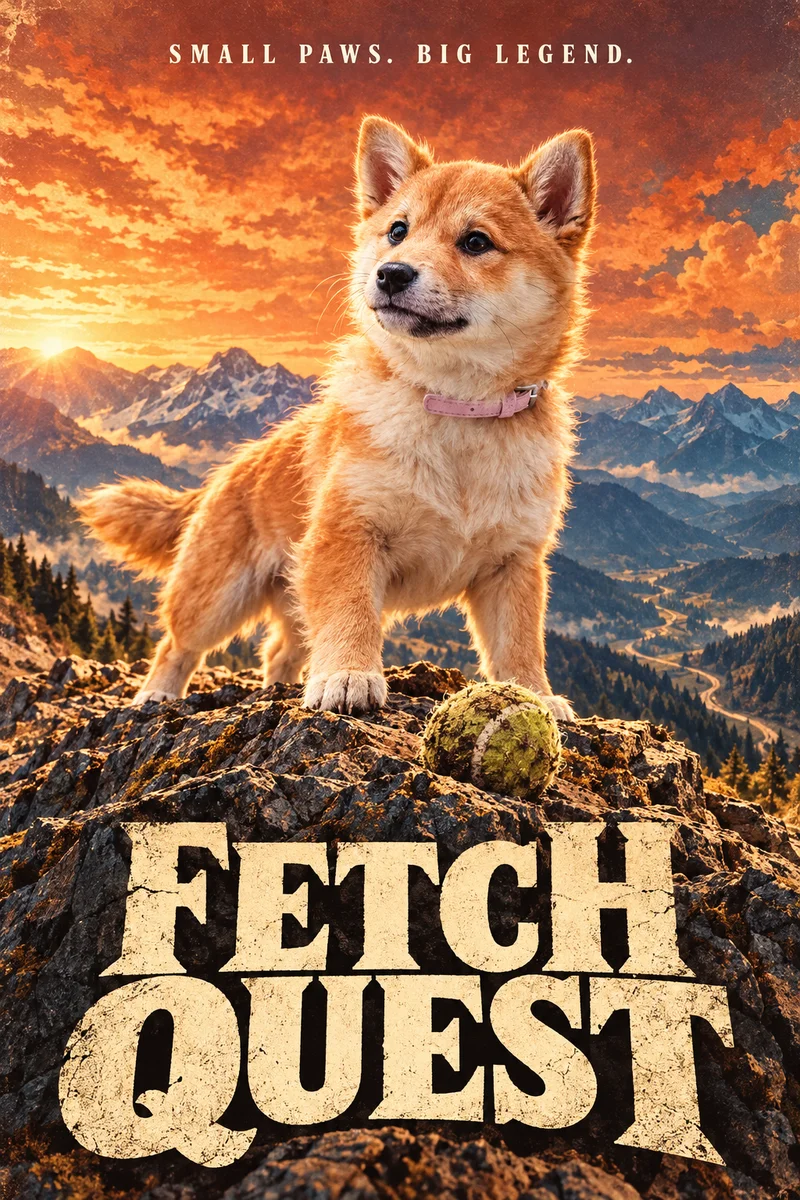
To make a poster with your dog, start with a clear photo, choose one story and use the pet creation path. The photo supplies coat markings and appearance; your description supplies the scene. Review the animal carefully, add any exact name in a layout editor and check the downloaded file before arranging a print.
Open the pet poster maker if you already have a photo. This guide shows how to turn a familiar pet into the star of an original poster, with practical decisions between upload and framing. The goal is a picture you recognize and enjoy, not just a dramatic background surrounding a generic dog.
Illustrative AI studies made from licensed stock photos, not customer projects. These were created for this showcase; results in the app will vary.
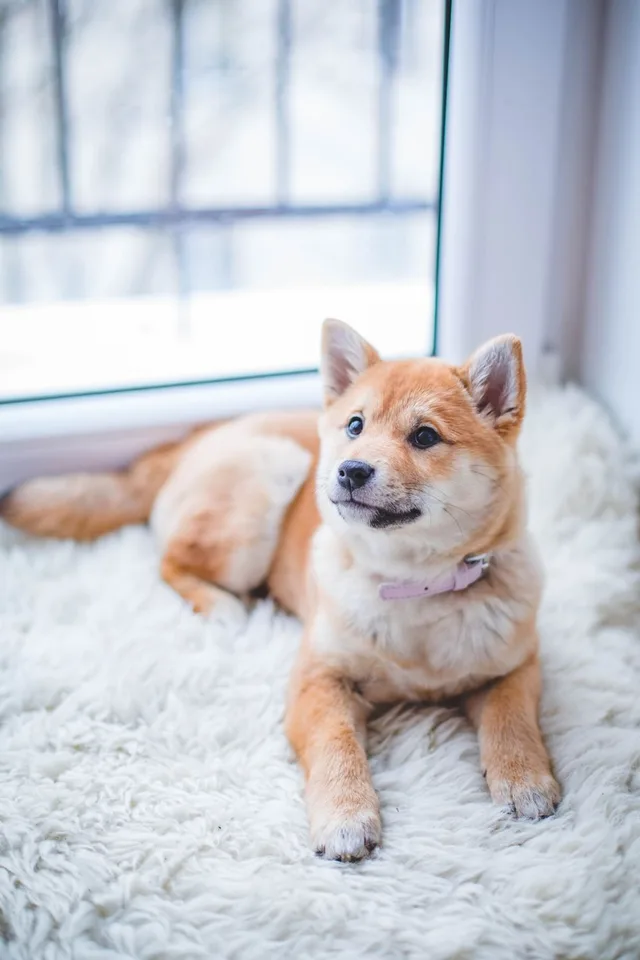
1. Choose a photo that shows your dog clearly
Use the original camera file rather than a screenshot or a compressed copy from a chat. Look for visible eyes, a sharp muzzle and enough light to distinguish the coat markings. A relaxed photo near a window often works better than a dark action shot. Keep ears and paws inside the crop if you want a full-body poster.
Start with one dog. If your source includes other animals or a person holding the dog, crop to the intended subject while retaining enough body detail. Do not sharpen a tiny image until it looks crunchy: that adds texture without recovering the identity. You do not need a professional studio portrait, but the information the model should preserve must actually be visible.
2. Choose a story someone would want on their wall
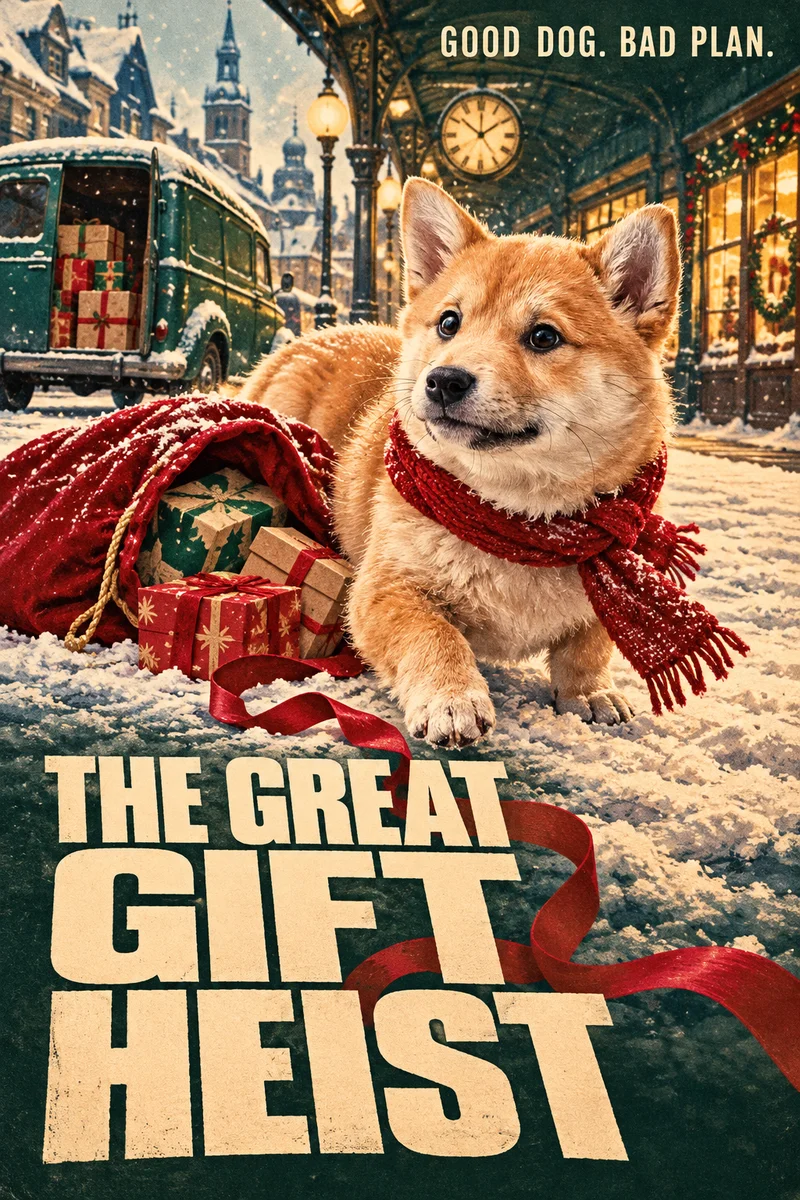
Pick one mood from your dog's personality: a confident adventurer, a curious detective or a mischievous Christmas gift thief. A clear story gives the composition a reason to exist. An oversized title can turn the image into a film poster; a quieter layout can suit a living-room print. Avoid stacking five genres, costumes and locations in one prompt.
The showcase pairs a licensed source photo with illustrative poster studies. The English titles describe fictional films; they are not customer projects or a guarantee of the app's output. Notice how the face remains visible while the scenery and title create a new story. For seasonal gifting, see the Christmas ideas.
3. Use the pet path and keep the description focused
Open the pet poster maker or select Pets in the creation screen. Upload the chosen photo, select one style and describe the setting, light, palette and composition. Create an account to generate your first free preview without a card. Keep the photo attached when you change the scene.
The pet path asks the model to preserve coat markings, ears, muzzle and natural proportions. That is guidance, not a promise of exact likeness. Describe what should change around your dog instead of requesting a different breed. If you use a reference poster, it supplies visual direction while your pet photo supplies identity. The photo workflow guide covers the upload process.
4. Inspect the animal before the background
Compare the result with the source at a useful size. Check the white blaze, eye colour, shape of the ears, muzzle length and leg proportions. Count visible paws and inspect where they meet the ground. A missing mark or human-looking limb is a reason to revise the scene, even if the lighting is attractive.
Make one change at a time: use a clearer source, remove complicated props or simplify the pose. Avoid asking for hands, a human suit or an upright human body unless that transformation is your explicit intention. A familiar expression and believable fur matter more than extra sparks. The design guide helps reduce background clutter and competing focal points.
Keep the artwork believable
Use the details you actually know about your dog rather than collecting effects from every example. If a collar matters, describe its colour and simple shape; avoid requiring tiny brand lettering. Keep the pose physically comfortable and the lighting consistent across the fur, props and background. One shadow direction helps the animal feel part of the scene. A small amount of grain can support a printed look, but heavy texture should not hide an inaccurate muzzle or coat.
Review the poster twice: first as a full composition, then close up around the animal. A thumbnail can conceal broken paws; a magnified view can make you forget an awkward overall crop. Ask whether the title, scene and dog have a clear order of attention. Remove anything that does not support the story. Finally compare the source and result side by side instead of relying on memory. A recognizable personal detail is what makes the transformation worth keeping.
5. Add your dog's name as real text
Leave a clean area in the image, then add the name, invented film title or short dedication in a layout editor. This keeps you in control of spelling, accents and placement. The showcase's titles demonstrate the visual direction; generated lettering in your own result still needs proofreading. A neat-looking word can contain a subtle mistake.
Keep the title short, use one or two typefaces and separate the dog's name from smaller supporting text. Set the document to the final print shape before positioning words. Keep text and ears away from the trim and frame edges. Export without accidentally reducing the artwork's pixel dimensions. If unwanted lettering is already part of the image, clean it up or choose a simpler generation.
6. Compare versions and plan the complete gift
A paid generation creates new variations rather than an identical enlargement of the free preview. Review each independently for likeness, anatomy and unwanted text. Check the current package and included edits on the pricing screen before buying. A good preview helps choose a direction, but it is not proof that every paid version will preserve the same pose or details.
Decide where the poster will live and what size suits that wall before ordering. The frame switch shows a display preview around the artwork; it does not add a physical frame to the purchase or bake one into the downloaded file. Keep the original download. Confirm print size, paper, proof and turnaround with your printer, especially if this is a surprise gift for a particular day.
Three prompts to adapt
Original adventure-film poster of the uploaded dog on a rocky ridge above a distant mountain valley. Preserve its coat markings, ears, muzzle and natural leg proportions. One tennis ball near its paws, warm rust sky and deep indigo shadows, deliberate printed poster composition. Leave a clean lower area for a title. No lettering or human limbs.
Original Christmas caper poster of the uploaded dog beside an open red gift sack at a snowy station. Preserve its individual appearance and natural paws. Forest green, burgundy and warm cream, restrained vintage film-poster composition, believable fur. Leave space for a title added later. No text or logos.
Quiet photographic pet portrait of the uploaded dog on a warm cream studio background. Soft side light, natural fur and visible eyes, one clear subject, muted colours and a calm composition. Preserve the animal's actual markings and proportions. No human body, extra paws, lettering or frame.
Check the file before choosing a frame
Check pixel dimensions and aspect ratio before choosing a frame. A tall 2:3 file fits an 8 × 12 inch or 20 × 30 cm shape, while A4 and A3 use different proportions. Fitting a 2:3 image onto those paper sizes requires a border or a crop; stretching it changes the face.
For a planning example at 300 pixels per inch, multiply each print dimension in inches by 300. These are calculated targets, not a promise of Generate Poster's output dimensions:
| Print size | Pixel target at 300 ppi | Shape |
|---|---|---|
| 20 × 30 cm | ≈2362 × 3543 | 2:3 |
| 30 × 45 cm | ≈3543 × 5315 | 2:3 |
| 8 × 12 inches | 2400 × 3600 | 2:3 |
| 12 × 18 inches | 3600 × 5400 | 2:3 |
| 16 × 24 inches | 4800 × 7200 | 2:3 |
Conversely, divide a file's dimensions by the planned print dimensions to calculate its effective ppi. A 2400 × 3600 image printed at 12 × 18 inches gives 200 ppi, rather than 300. Ask your printer whether that suits the paper and viewing distance. Adobe explains the relationship between image dimensions and printed size.
Frequently asked questions
Can I use a phone photo of my dog?
Yes. Use the original, sharpest file with visible eyes and coat markings. Avoid tiny screenshots, strong filters and motion blur. Leave room around ears and paws for the final crop. A clear source helps the model, but does not guarantee an exact likeness.
Will my dog look exactly the same?
Exact likeness is not guaranteed. The pet path asks the model to preserve markings and natural proportions, but you should compare every result with the source. If the muzzle, ears or coat change, simplify the scene or try a clearer reference before choosing a print.
Can I add my dog's name?
Yes. For accurate spelling, reserve space and add the name in a separate layout editor after downloading. Review accents and each letter at the final size. The sample film titles in the gallery are inspiration, not a promise that AI lettering will always be correct.
Is the paid version identical to the free preview?
No. A paid run creates new variations; expressions, background and composition can change. Inspect each result separately. Check the current package and included features before checkout, and select the image that best preserves your pet rather than assuming the first version is the keeper.
Does the frame preview include printing and a frame?
The preview only shows how the digital artwork might look on a wall. Downloads contain the artwork. Arrange printing and framing separately, or request a print quote where offered. Check real pixel dimensions, crop and the printer's confirmed requirements before ordering.
Make one with my photo. First preview free. Sign in to create; no card required.
Source photos: Pexels: Pexels.